Smart TV slow streaming apps are one of those problems that quietly build up until they become impossible to ignore. What once felt instant—opening Netflix, switching apps, loading menus—starts to lag, buffer, or freeze in ways that disrupt the entire viewing experience.
It often begins subtly. A streaming app takes a second longer to open, thumbnails load more slowly, or the remote feels less responsive. Most users assume it’s their internet connection, but even with stable Wi-Fi, the sluggishness persists and gradually worsens.
This issue affects a growing number of households because smart TVs are no longer just screens—they are full computing devices with limited hardware that must keep up with increasingly complex apps and updates.
Understanding why this happens is essential if you want to fix it effectively. This article breaks down the real causes behind performance degradation, explores practical tools, and helps you decide the most efficient way to restore speed without unnecessary frustration.
When Your TV Starts Feeling “Off” — A Quick Reality Check
Most users don’t notice the moment their TV starts slowing down. Instead, they adapt. They wait a little longer, restart apps more frequently, or avoid switching between platforms too quickly.
A common scenario is opening a streaming app like YouTube or Netflix and noticing that the interface hesitates before responding. Menus stutter, recommendations take time to load, and sometimes playback starts in low quality before stabilizing.
Another overlooked sign is input lag from the remote. When you press a button and the TV reacts with a slight delay, it’s not always a hardware issue. It’s often a system-level slowdown caused by accumulated processes running in the background.
Many users unknowingly worsen the problem by installing multiple apps they rarely use. Each app may leave behind cached data, background services, or system hooks that gradually reduce available memory.
If your TV feels slower than it did six months ago, even without changing your internet plan, the issue is likely internal—not network-related.
What Actually Causes Smart TVs to Slow Down
Smart TVs operate on limited processing power and memory, especially compared to smartphones or computers. Over time, this limitation becomes more noticeable as apps evolve.
One major factor is software bloat. Streaming platforms constantly update their apps with new features, heavier interfaces, and more complex recommendation systems. These updates are designed for newer hardware but still pushed to older TVs.
Another key issue is cache accumulation. Every time you use an app, it stores temporary data to speed up future use. However, when this cache grows too large, it does the opposite—it slows everything down.
System fragmentation also plays a role. Unlike phones, smart TVs rarely receive deep system optimizations. After months of usage, file storage becomes inefficient, affecting performance at a basic level.
A less obvious cause is background synchronization. Some apps continuously fetch data, update content, or track usage patterns even when not actively open. This silently consumes resources.
According to performance optimization guidelines published by major browser and platform developers, excessive cached data and background processes are among the primary causes of degraded performance over time, as explained in documentation like the Google Chrome Developers guide on performance optimization, which outlines how modern applications increasingly demand more system resources.
Tools That Can Help Restore Performance
There are a few practical tools and built-in features that can significantly improve Smart TV performance when used correctly.
System Cache Cleaners (Built-in or Hidden Settings)
Many TVs have hidden maintenance menus or storage settings that allow you to clear cached data. This is often the fastest way to recover responsiveness. Ideal for users who notice gradual slowdown without major issues.
Streaming Device Alternatives (Fire TV Stick, Chromecast, Apple TV)
External devices offload processing from the TV itself. They are especially useful for older TVs struggling with modern apps. However, they add another remote and ecosystem layer.
Factory Reset Function
This is the most aggressive but effective solution. It removes all accumulated data, resets system fragmentation, and restores original performance. Best for TVs that feel consistently slow across all apps.
Router-Level Optimization Apps
Some network management tools prioritize streaming traffic. While they don’t fix internal lag, they help eliminate network-related confusion when diagnosing the problem.
The key is understanding that no single tool solves everything. Each option addresses a different layer of the issue.
See Also:
The Real Reason Some Shows Take Longer to Load Than Others on Streaming Platforms
Why Some Movies Appear in Different Quality on Different Streaming Platforms
How Multiple Devices Affect Streaming Performance in Your Home
Ranking the Most Effective Solutions Based on Real Performance
- Factory Reset
This consistently delivers the most noticeable improvement. It removes years of accumulated data and resets the system entirely. The downside is the time required to reinstall apps and log in again. - External Streaming Devices
These often outperform built-in smart systems, especially on older TVs. In real-world use, they provide smoother navigation and faster app loading. However, they rely on additional hardware investment. - Clearing Cache and Uninstalling Apps
This is a practical middle-ground solution. It improves performance without major disruption, but results may be temporary if usage habits remain the same. - Software Updates
While updates sometimes improve performance, they can also introduce heavier features. In practice, they are inconsistent as a solution.
The ranking reflects real usage patterns rather than theoretical capabilities. Many users expect updates to fix everything, but in reality, hardware limitations dominate the outcome.
Real-World Usage: What Actually Changes After Optimization
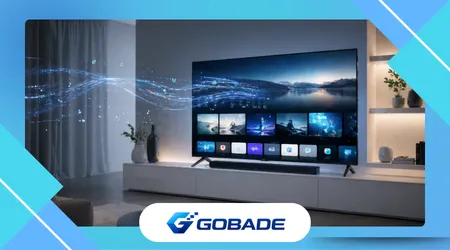
Consider a typical case where a user performs a factory reset after months of slow performance.
Before the reset, apps take 5–8 seconds to open, navigation feels delayed, and occasional freezes occur during streaming.
After the reset, the same apps open in 2–3 seconds, menus respond instantly, and playback stabilizes without buffering delays caused by system lag.
In another scenario, a user switches to an external streaming device. The difference becomes even clearer. Interface transitions are smooth, app switching is immediate, and content loads faster due to better hardware optimization.
However, one detail often overlooked is long-term consistency. External devices maintain performance longer because they receive more frequent optimization updates compared to built-in TV systems.
Comparing Solutions Side by Side
| Tool / App | Main Feature | Best Use Case | Platform Compatibility | Free or Paid |
|---|---|---|---|---|
| Factory Reset | Full system refresh | Severe slowdowns | All Smart TVs | Free |
| Cache Cleaning | Removes temporary data | Mild performance issues | Most Smart TVs | Free |
| Fire TV Stick | External processing power | Older TVs | HDMI TVs | Paid |
| Chromecast | App-based streaming control | Mobile integration users | HDMI TVs | Paid |
| Apple TV | High-end performance | Premium experience | HDMI TVs | Paid |
This comparison highlights a practical reality: built-in fixes are limited, while external devices offer longer-term performance stability.
What Makes One Approach Better Than Another
The difference between solutions often comes down to control and longevity.
Built-in tools like cache cleaning or system resets work within the limitations of the TV hardware. They are effective but temporary, especially for heavy users who frequently install apps.
External devices, on the other hand, operate independently. They receive dedicated updates, better optimization, and are designed specifically for streaming performance.
A less obvious insight is that TVs prioritize display quality over processing power. Manufacturers invest more in panels than in internal chips, which explains why even premium TVs can feel slow after a year.
From a practical standpoint, users who rely heavily on streaming apps benefit more from external devices than from repeatedly optimizing the internal system.
The Reality Most Users Don’t Expect
No solution will permanently prevent slowdown on built-in Smart TV systems. This is not a failure—it’s a design trade-off.
Smart TVs are not built for long-term software scalability. As apps evolve, they naturally outgrow the original hardware capabilities.
Another misconception is that internet speed is the main issue. While it affects buffering, it rarely impacts interface lag or app responsiveness.
According to research on digital device performance and system degradation patterns from institutions like the National Institute of Standards and Technology (NIST) on system performance and maintenance practices, accumulated processes and inefficient resource management are expected behaviors in constrained systems over time.
Understanding this helps users make better decisions instead of endlessly troubleshooting the wrong causes.
Risks, Privacy, and Safe Usage Practices
When optimizing your Smart TV, it’s important to consider privacy and data handling.
Factory resets remove stored data, but they also wipe saved credentials. If not handled properly, users may forget accounts or lose access to services.
External streaming devices introduce another layer of data tracking. Many platforms collect usage data to personalize recommendations, which may raise privacy concerns.
Some third-party optimization apps promise performance boosts but can introduce security risks. Installing unknown tools on smart TVs is generally not advisable.
The safest approach is to rely on built-in system features or trusted hardware solutions, ensuring that performance improvements do not come at the cost of security.
Making the Right Decision Based on Your Situation
If your TV is relatively new and only slightly slow, clearing cache and removing unused apps is often enough.
If performance issues are consistent across all apps, a factory reset provides the fastest recovery.
For older TVs or heavy streaming usage, investing in an external device is the most reliable long-term solution.
Users who expect their TV to behave like a smartphone often become frustrated. The better approach is to treat the TV as a display and let specialized devices handle the computing workload.
Conclusion
Smart TV slow streaming apps are not random glitches—they are the result of predictable system limitations combined with evolving software demands.
Recognizing the difference between network issues and internal performance problems is the first step toward fixing the experience efficiently.
Simple actions like clearing cache or removing unused apps can deliver quick improvements, but they rarely solve the problem permanently.
More decisive solutions, such as factory resets or external streaming devices, provide clearer and more consistent results, especially over time.
The most effective approach depends on how you use your TV. Understanding your usage patterns allows you to choose the right solution instead of relying on trial and error.
FAQ
1. Why does my Smart TV get slower even with good internet?
Because the issue is usually internal—limited hardware, cache buildup, and app updates—not your connection speed.
2. Does clearing cache really improve performance?
Yes, but usually temporarily. It helps remove excess data that slows down apps.
3. Is a factory reset worth it?
For major slowdowns, it’s often the most effective solution.
4. Are external streaming devices faster than Smart TVs?
In most real-world cases, yes. They are better optimized for streaming apps.
5. Can software updates make my TV faster?
Sometimes, but they can also add heavier features that slow older hardware.